Frontline Access (Employee SSO Login)
Access from KB:
Click the "Launch" button on the Frontline KB Page
|
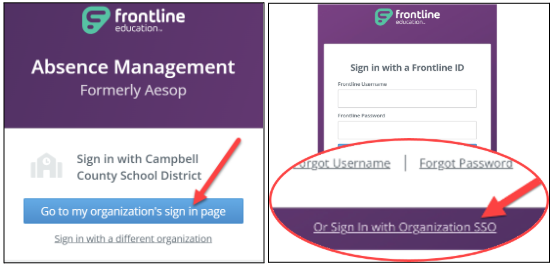
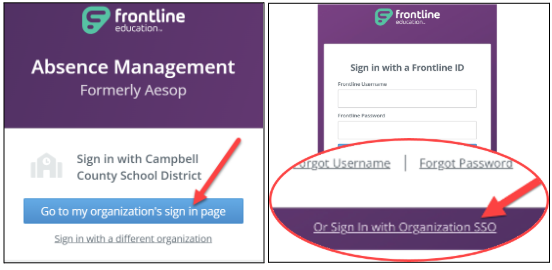
- Click “Go to my organization’s sign in page.”
- OR Click on the link “Or Sign in with Organization SSO.”
|
|
|
- Click on Absence Management (formerly Aesop) from the landing page.
|

|
|
- If you have multiple roles in Frontline, click on the drop-down menu beside your name to switch roles.
|

|
From Frontline app:
|
- Install the Frontline Education app.
|

|
|
- Sign in using CCPS single sign-on (SSO).
- Click Sign In with Organization SSO
|

|
|
- Type your CCPS email address.
- Click “Look up organization sign in page.”
- Log into Microsoft with your work email and password if prompted.
|

|
|
- Click on your role and then click Continue.
|

|
|
- Setting up your biometrics login is optional. You can click “No, Thanks.”
|

|
|
- This is your home screen.
- You can create Absences.
- You can view Leave Balances.
|

|