Frontline Access (SSO Login)

Access from LearnPlatform:

    1.

  1. From your computer, open Chrome and navigate to LearnPlatform. home.campbell.k12.va.us

  2.  

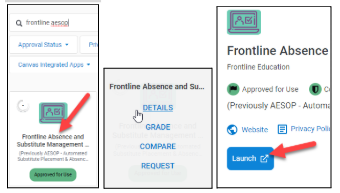
  3. 2. Search for Frontline Aesop to locate the correct tile and click on it. Click Details. Click Launch.

  4.  

  5. 3. Log into Microsoft with your work email and password if prompted.

image.png


    4.

  • Click on Absence Management (formerly Aesop) from the landing page.


    5.

  • If you have multiple roles in Frontline, click on the drop-down menu beside your name to switch roles.

Access from Website: https://bit.ly/3EBZrpQ


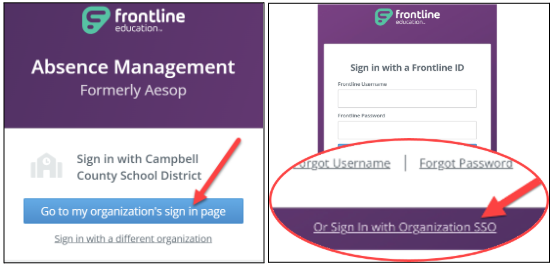
  • Click “Go to my organization’s sign in page.”
  • OR Click on the link “Or Sign in with Organization SSO.”

image.png


  • Click on Absence Management (formerly Aesop) from the landing page.


  • If you have multiple roles in Frontline, click on the drop-down menu beside your name to switch roles.


From Frontline app:


  • Install the Frontline Education app.


  • Sign in using CCPS single sign-on (SSO). 
  • Click Sign In with Organization SSO


  • Type your CCPS email address.
  • Click “Look up organization sign in page.”
  • Log into Microsoft with your work email and password if prompted.


  • Click on your role and then click Continue.


  • Setting up your biometrics login is optional. You can click “No, Thanks.”


  • This is your home screen.
  • You can create Absences.
  • You can view Leave Balances.