Installing apps on a CCPS iPad from the App Portal
Please follow the steps below to install an app on a CCPS iPad:
- Find and open the App Portal on the iPad.
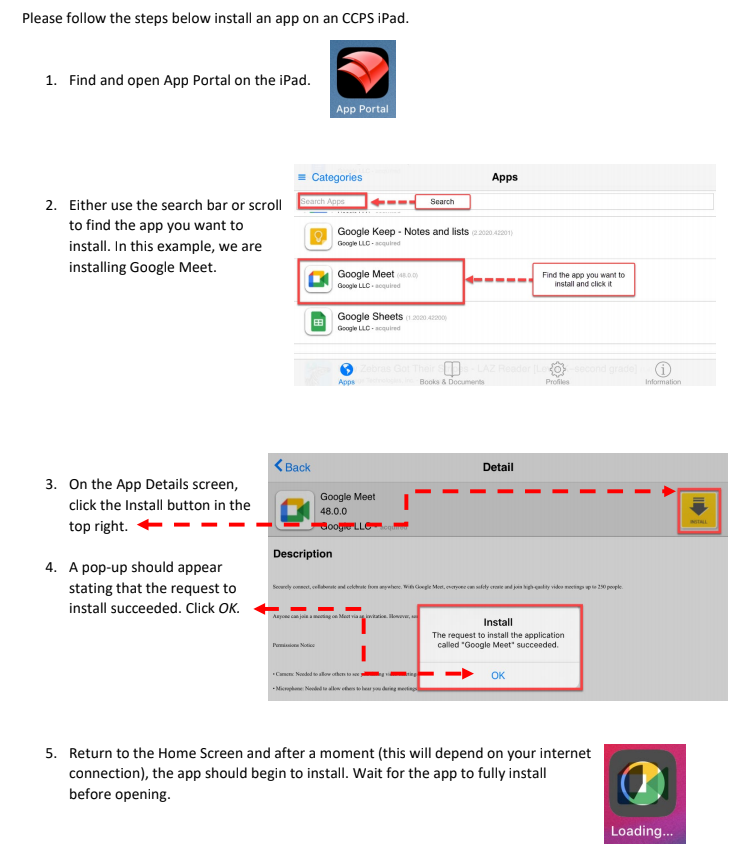

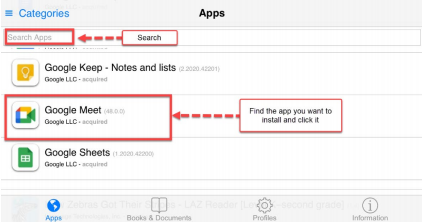
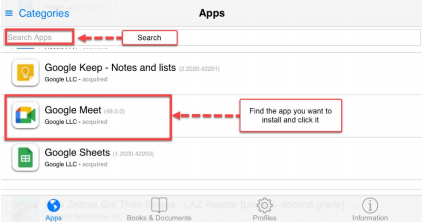
- Either use the search bar or scroll to find the app you want to install. In this example, we are installing Google Meet.
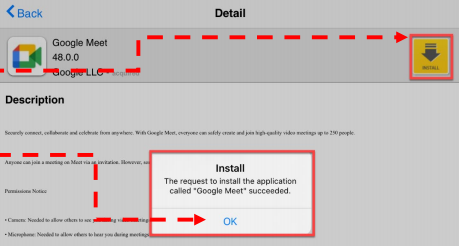
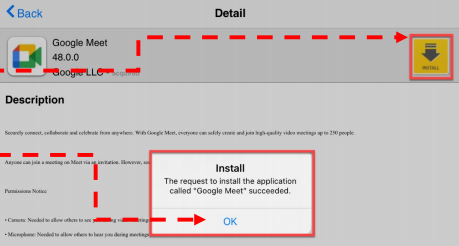
- On the App Details screen, click the Install button in the top right.
- A pop-up should appear stating that the request to install succeeded. Click OK.
- Return to the iPad Home Screen and after a few moments the app should begin to install. Wait for the app to fully install before opening.