iPad app will not update
iPad apps should update themselves automatically. If an app has not updated when you expect it to, you can force iPad apps to update by doing the following:
- Tap the FileWave App Portal icon on the iPad home screen. The App Portal icon looks like this:

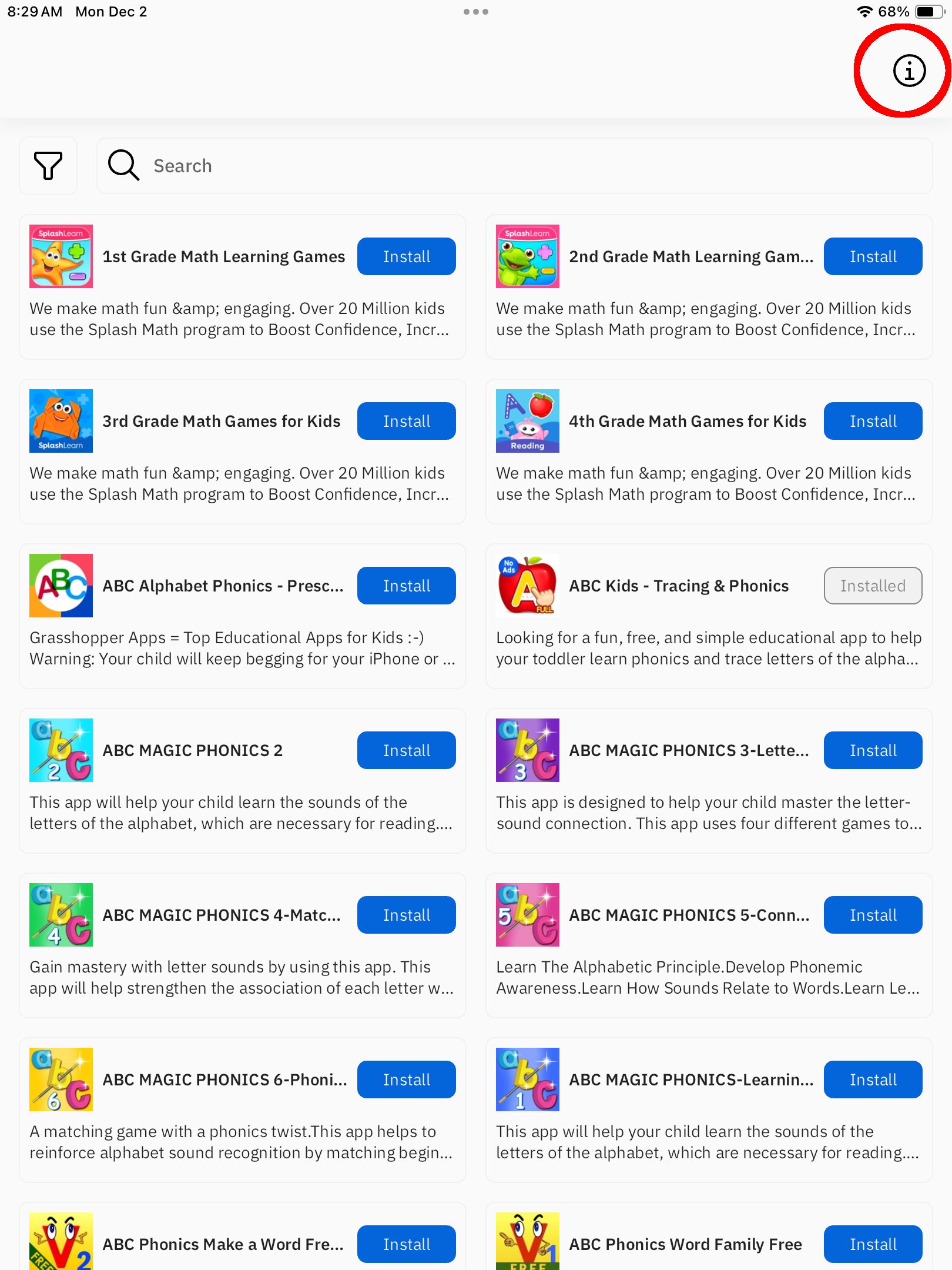
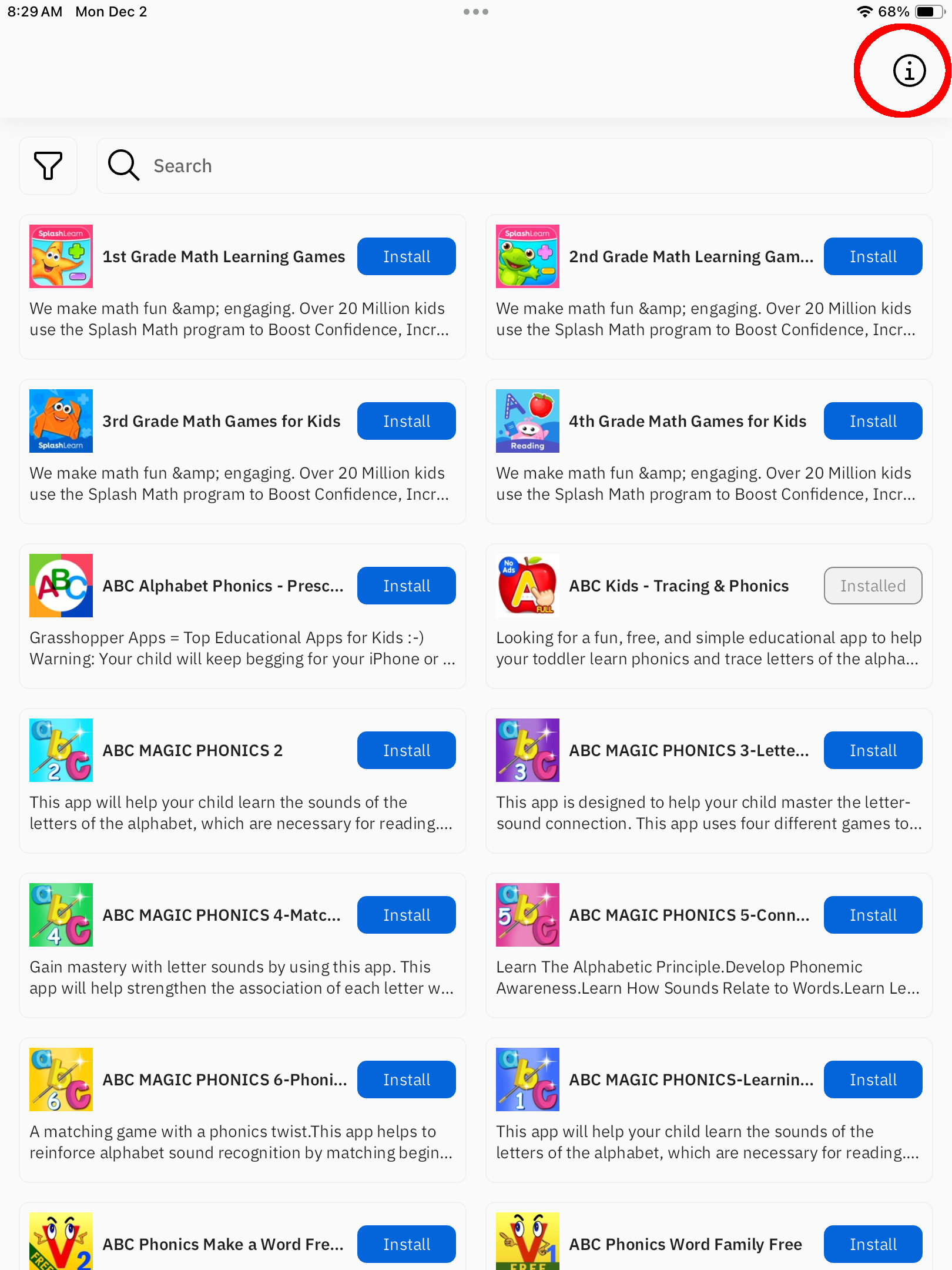
- When App Portal opens, tap the "i" button in the top right corner of the screen.
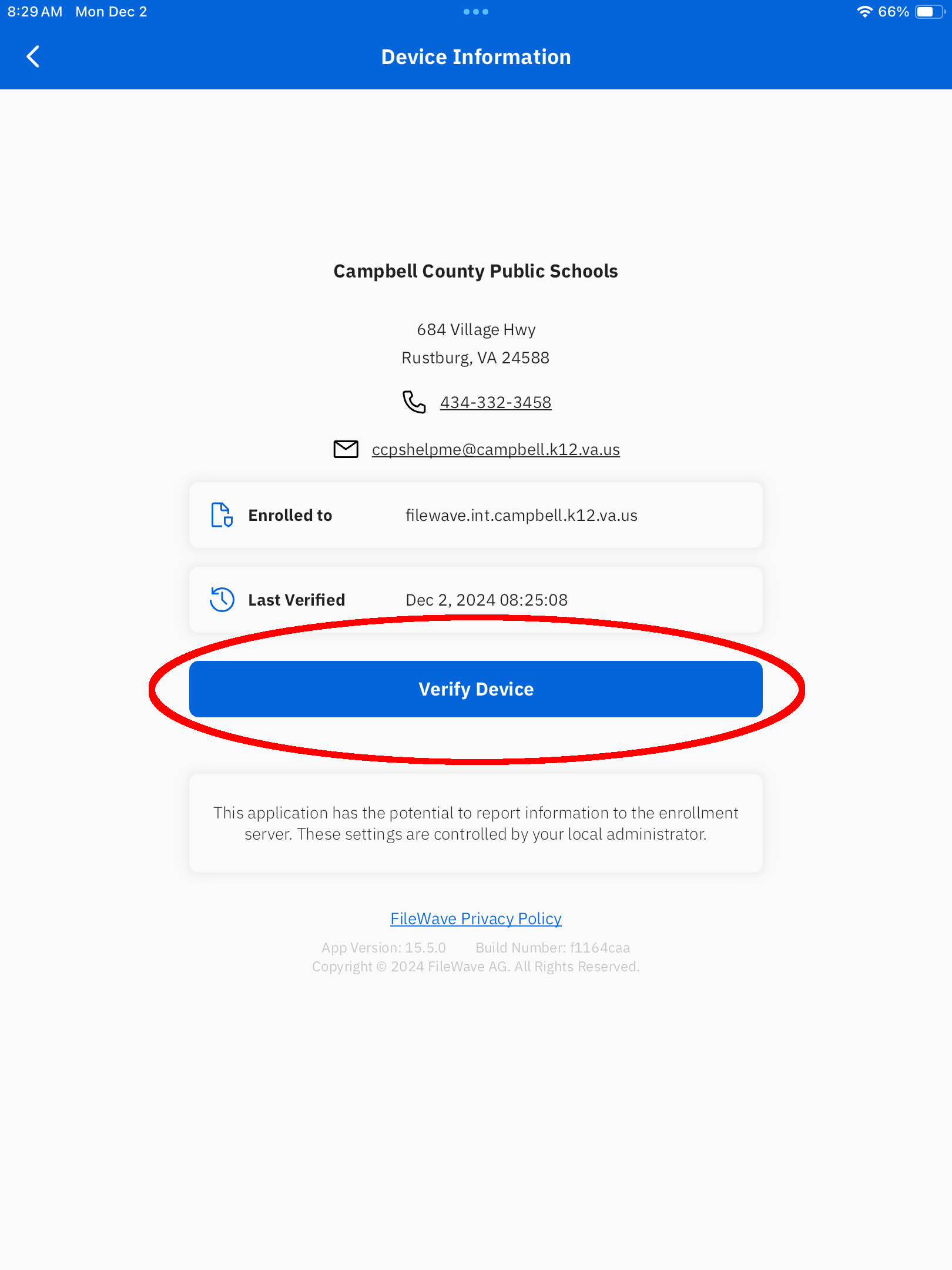
- Then tap the "Verify Device" button.
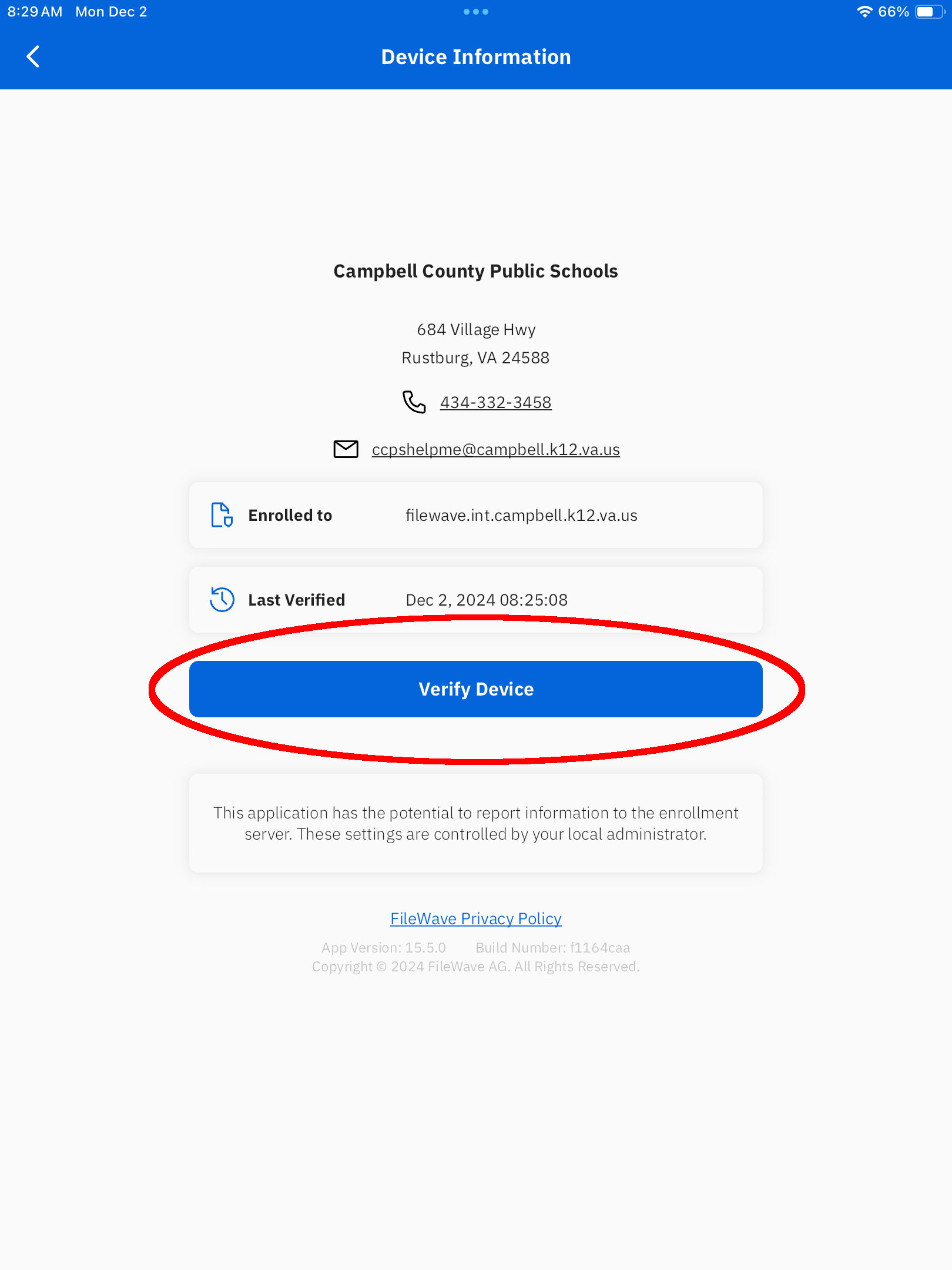
- After a few minutes, the apps should begin to update.