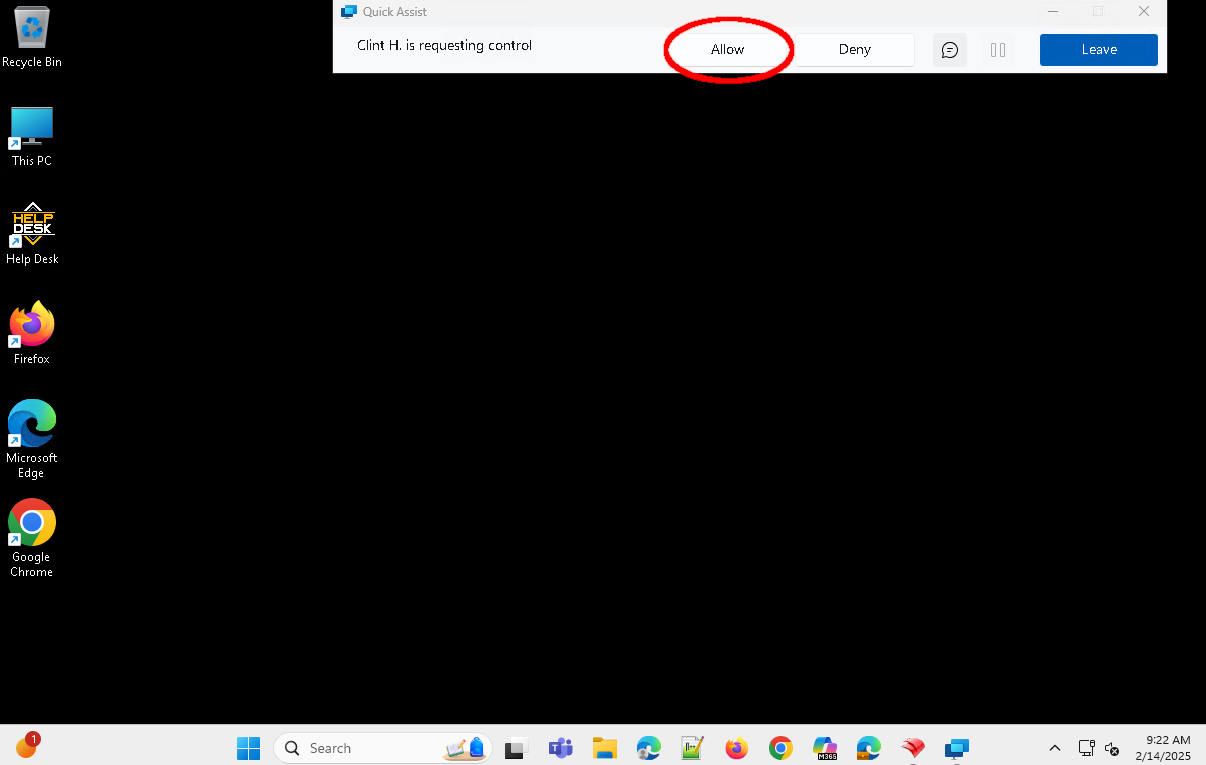
Using Quick Assist during a Help Desk session
If you are contacting the Help Desk from home and the technician needs to access your computer, you may be asked to use a program called Quick Assist. Follow these directions to get connected with the technician using Quick Assist.
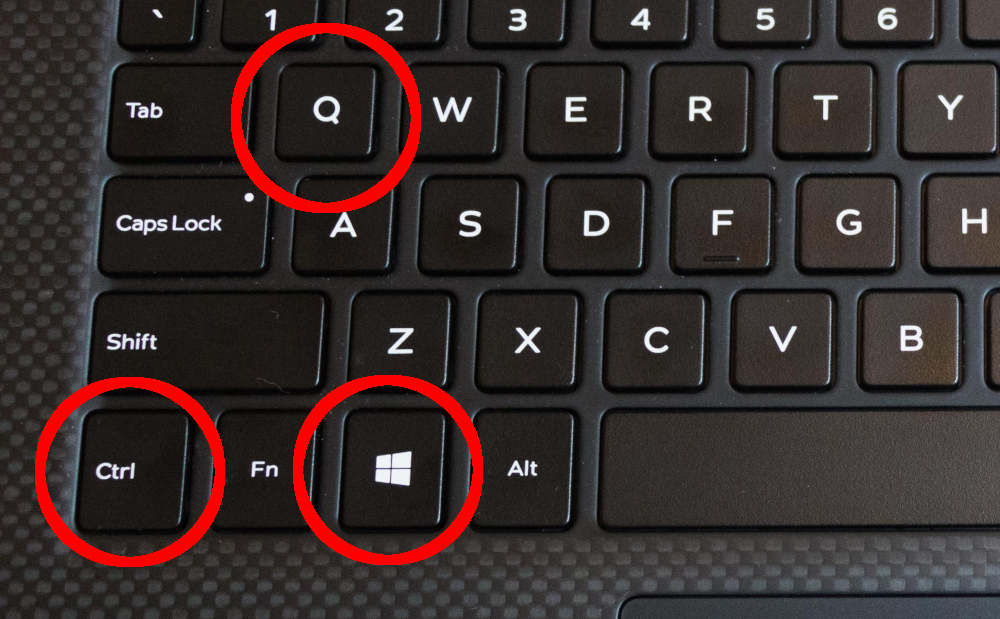
- Press the ctrl +
 + Q keys all at the same time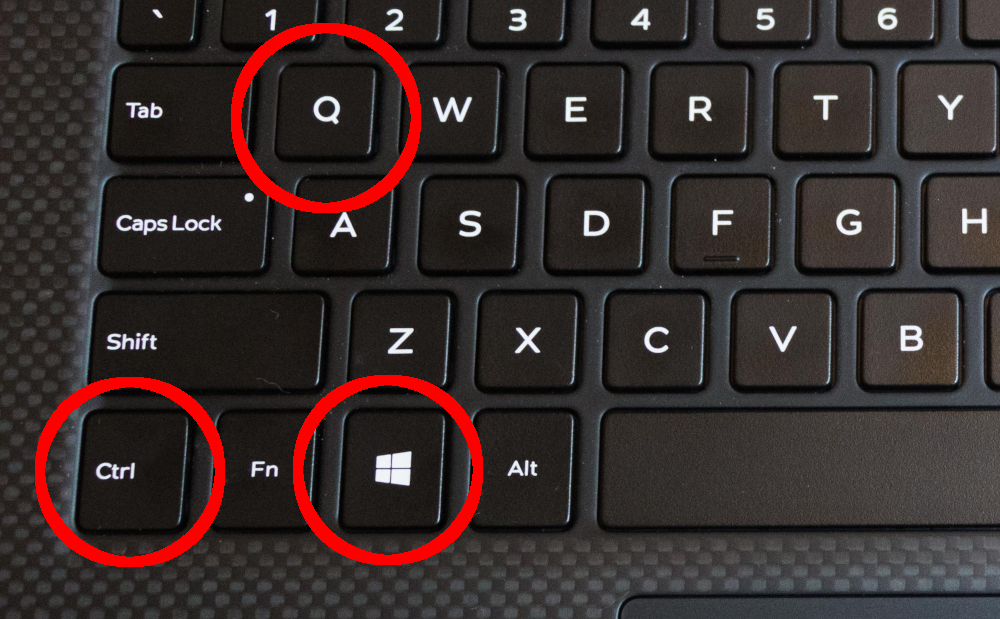
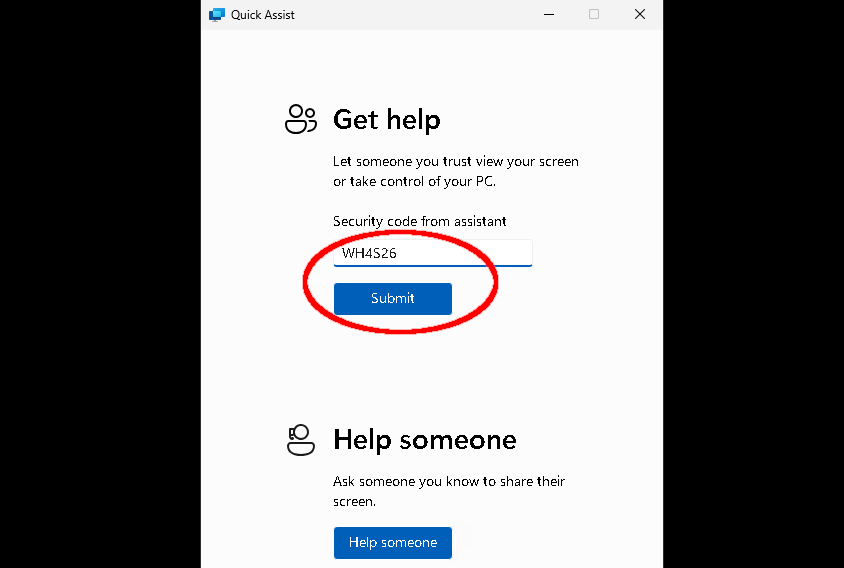
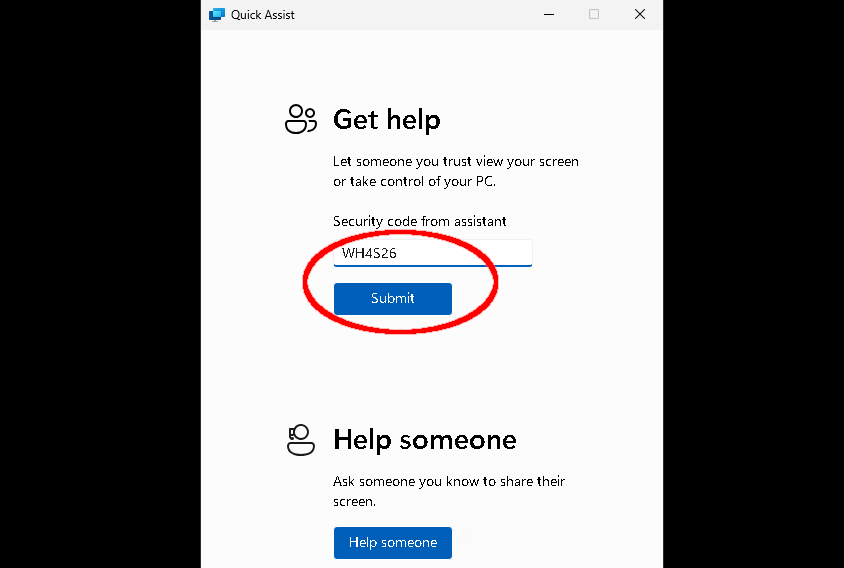
- This should open the Quick Assist app. Once the window loads, enter the code provided by the technician on the first screen and click the Submit button.
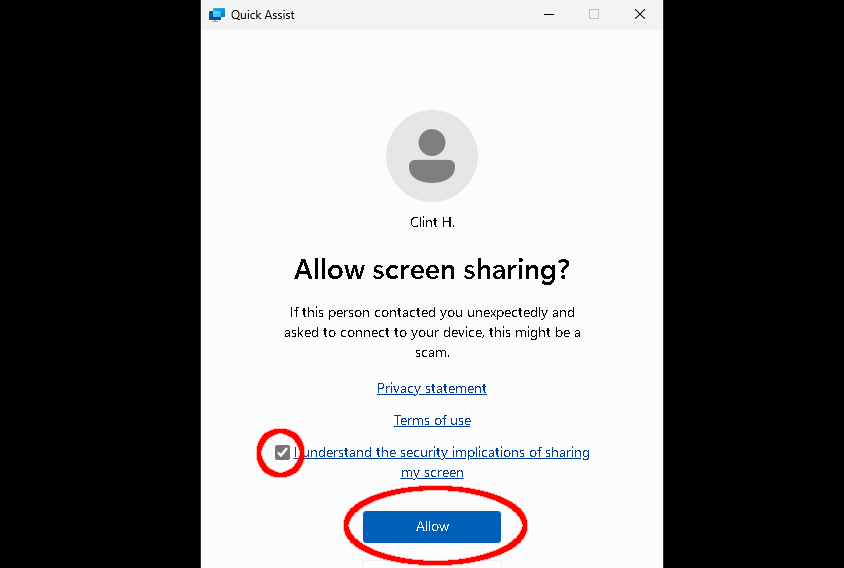
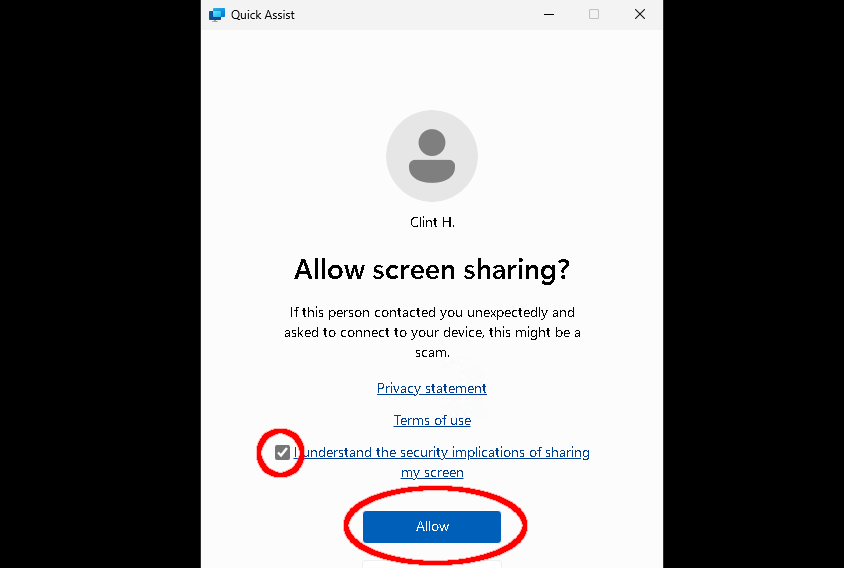
- To complete the connection, check the box to agree to the terms and then click the Allow button.
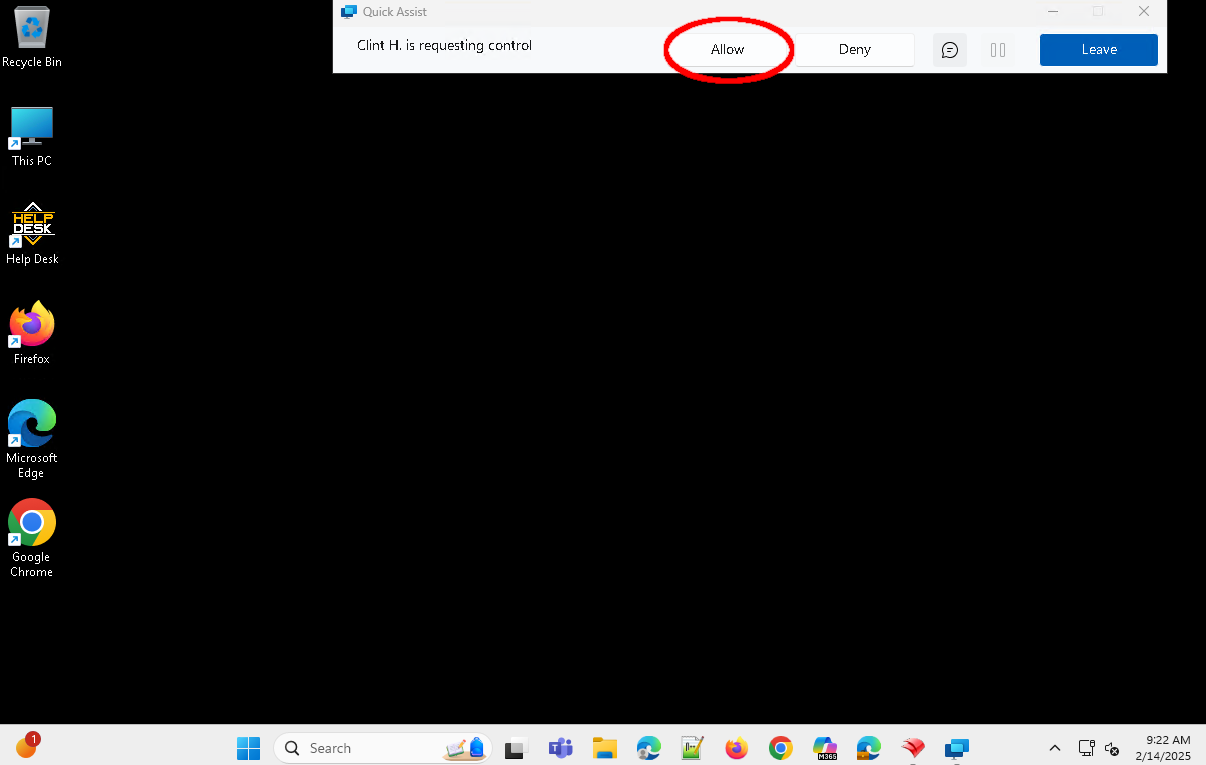
- Once connected, the technician may request to remote control your computer. Click the Allow button at the top of the screen to allow control.